12
Views
0
Saves
About IntoLayers
IntoLayers splits a flat PNG or JPEG into editable layers and a layered PSD: a rebuilt background plus one transparent layer per subject, text block or graphic, each named and kept in order. Download the stack as a PSD or save any layer on its own.
Updated 11/16/2026
Key Features
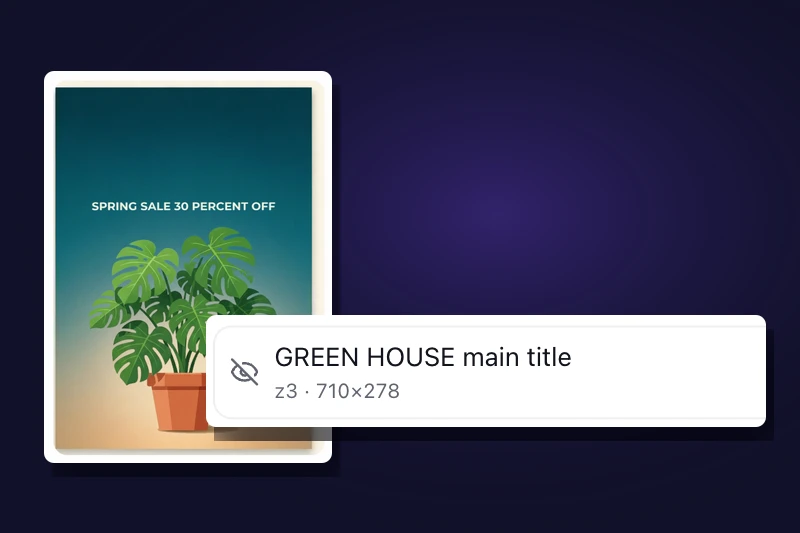
- Upload one PNG or JPEG and the model separates text, subjects and graphics onto transparent layers of their own
- Rebuilt background — the separated elements are removed and the gaps filled in, so moving an element leaves no hole
- Every layer arrives named and in its original position and stacking order
- Export the whole stack as a layered PSD, or each layer as its own transparent PNG in a ZIP
- Choose 2, 3, 5, 7 or 9 layers, or let Auto pick from 2 to 17
- Output at 1K, 1.5K or 2K — 5 credits per layer at 1K, 8 at 1.5K and 10 at 2K
- At 3 or more layers small elements come back enlarged, so fine text stays sharp
- Your first 1K conversion with 2 layers runs free without an account
- Exported PSDs verified to open with names, positions and transparency intact in Photopea and GIMP
Pricing Structure
- Free — $0 — 10 signup credits, plus 2 more each daily check-in
- Starter — $14.90/month — 1,200 credits every month; up to 2K output
- Pro — $24.90/month — 2,500 credits every month; priority support
- Starter (yearly) — $9.90/month billed yearly — $118.80/year — saves about 34%
- Pro (yearly) — $19.90/month billed yearly — $238.80/year — saves about 34%
- 2,000 Credits — $29.90 one-time — Top-up pack; credits never expire
- 4,500 Credits — $59.90 one-time — Best value pack; credits never expire
Why People Use It
Photoshop has no command that splits a flat image into object layers, so you select and mask each part by hand. IntoLayers does that separation for you and returns a real layer stack, letting a designer change one element of a client's flattened JPG without an afternoon of masking. AI creators use it to fix wrong text in a generated image, and animators use it to pull a character apart before rigging.
See IntoLayers in Action
0
selected